Sync Calendar from your dashboard
By following these steps:
-
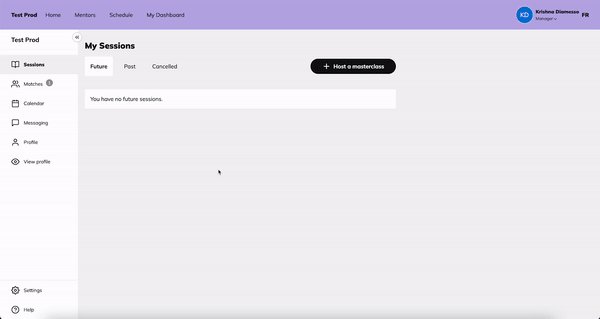
Click on “Settings” in the bottom left-hand corner of their Mentorly dashboard.
-
Click on "Connections" in the newly appeared menu located on the left-hand side, then click on "Add calendar account"
-
Choose the calendar provider and follow the prompts to authorize the connection.
-
Once authenticated, determine which of your calendars you'd like Mentorly to sync with by selecting your preference in the "Sync to this calendar:" dropdown menu.
🔎 Now you can decide where you want to host your sessions:
Mentorly Video, Zoom, Google Meet or Microsoft Teams. You choose this in Meeting settings, on your Calendar page (and in your onboarding when you first join). Google Meet unlocks once a Google Calendar is connected, Microsoft Teams once an Outlook / Microsoft 365 calendar is connected: your calendar creates the meeting link on every session.
Verify your Calendar tab on Mentorly
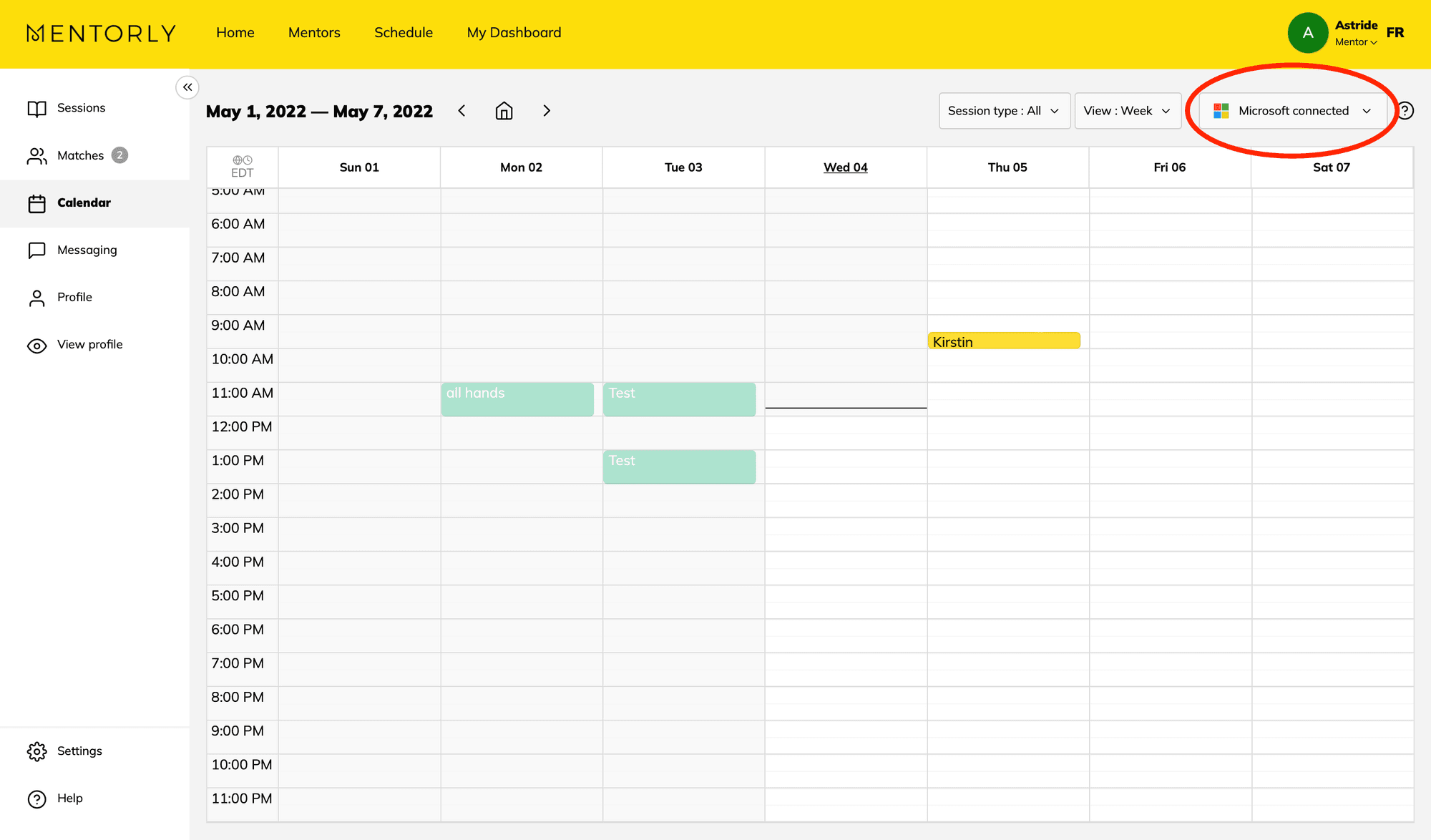
To verify that your external calendar has been synced, head over to your Calendar tab to see your available times.
It will pull all of the free times from your calendar, and once a mentee books with you (and you approve) it will automatically add the session to your calendar.
Logging sessions you scheduled on your own calendar
If you and your mentor or mentee set up a session in your own calendar (Outlook, Google, and so on), Mentorly can log it for you automatically once your calendar is connected. You do not need to add it in Mentorly by hand.
For this to work, the calendar invite needs to be just between the two of you:
- A one-on-one invite between you and your mentor (or mentee) is logged as a session.
- A meeting that also includes other people, like a team or company meeting, is not logged. Neither is a personal time block with no one else on it. Those are not mentorship sessions.
- Only one of you needs a connected calendar for the session to be logged.
As long as the invite is between the two of you, the session shows up in Mentorly on its own.
Have any questions or need any assistance?
Not to worry, we’re here to help!
You can contact the Mentorly support team by going to the Help tab found on your personal dashboard and clicking Go to Live Chat.